MRP
The MRP function will use your current Sales Order data, compare this to current stock levels and pending purchases, then suggest new Work Order and Purchase Orders in order to ensure customer demand is met.
When suggesting Purchase Orders, the system will identify if a Stock Item has an Usual Supplier record.
If yes, it will use the Usual Supplier record to pre-fill the Supplier Name and order Lead Time.
If not, MRP will calculate using the Default Lead Time (accessible in Settings), and the order will require manual creation.
When suggesting Work Orders, the system will identify if the Stock Item has a Production Route assigned to it.
The system will calculate the total time required based on the Route's Jobs.
It will then identify the Resource required for each Job, and pull in the Shift records to determine an availability window.
Finally, the system will identify an adequate time slot within the availability window and present that as a suggestion.
If no Route is assigned, MRP will calculate using the Default Lead Time (accessible in Settings), and the order will require manual creation.
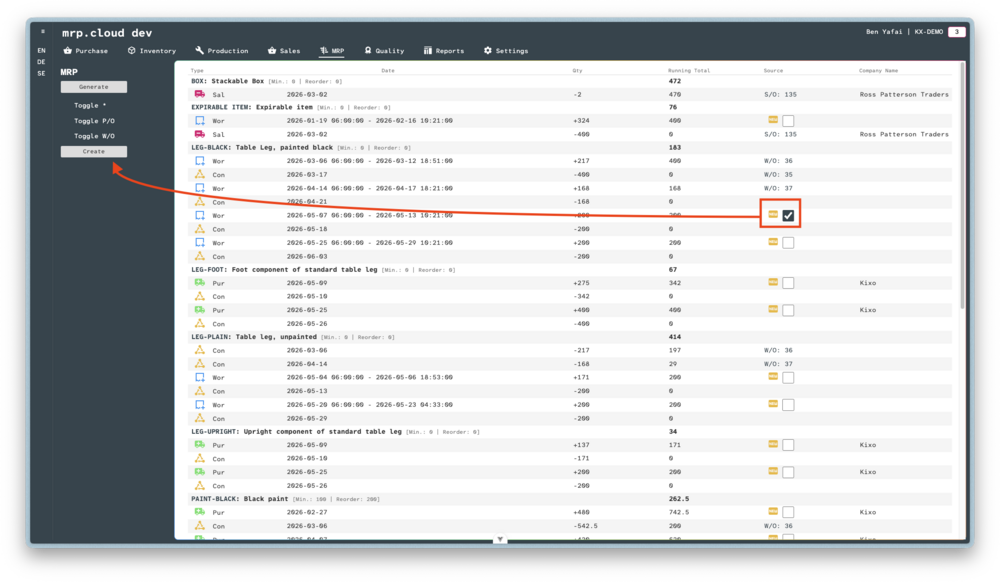
The first line will detail the Part Number, Part Description, and current stock level.
After which, each transaction is listed and the running total updated to reflect the stock movement in or out.
- 1
Go to the MRP page and click
Generateto receive a list of transactions.- 2
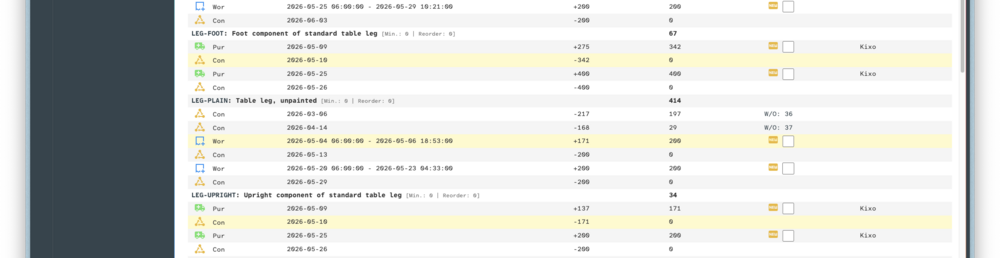
For each Stock Item that has a pending Sales Order, you will see a date-ordered list of transactions with a running total of stock quantity.
There are four transaction types displayed:
Sal: Sales Order records reflect customer demand for items.
Pur: Purchase Order records reflect the need to buy in items to fulfil customer demand, or internal usage.
Wor: Work Order records reflect the need to manufacture new items.
Con: Consumption records reflect stock depleting through the completion of Work Orders.New Work Orders and Purchase Orders will have the
NewIcon and a checkbox next to it.
If you want to create the transaction, check the box then clickCreatein the sidebar.

Notes
You can click on any line in the list of transactions to highlight related records.
For example, click on a Work Order record to see the related Consumption records.