

Purchase Order - Creating
- 1
Navigate to Purchase, then Purchase Order page and click
Addin the top corner to begin a new purchase order.- 2
In the Supplier input, search for a supplier. You can type the Supplier Account Code or Supplier Name.
Results will appear below the input, you must click on the supplier to highlight and select it.From the dropdown list, choose a Warehouse. The warehouse address will be included on your Purchase Order PDF so that your supplier knows where to deliver your items.
Type your Supplier Quote Number, this is typically found on the quote that the supplier has given you. You are free to type any input here.
Click
Addto proceed to the main purchase order screen.- 3
Now the core purchase order has been created, and a new Order Number has been assigned.
The Currency of this order has been pre-selected based on your Supplier's entry and can be changed if needed.
You can type any related notes to this order. They are internal and will not be included on the Purchase Order PDF- 4
In the lower portion of the main purchase order you can click
Addto add line items to the purchase order.In the Part Number field you can begin to type the item that you would like to purchase. You can type the Part Number or Part Description and the system will return any matches.
Click on the item to choose it; the rest of the columns will be pre-filled based on your Stock Item entry and can be changed if needed.For each line item, you can enter an Expected Delivery Date. If the item has not been received by this date, the line will appear in the Overdue Purchase Orders report.
- 5
When all the items are added, you can
Savethe order.


Optional Steps
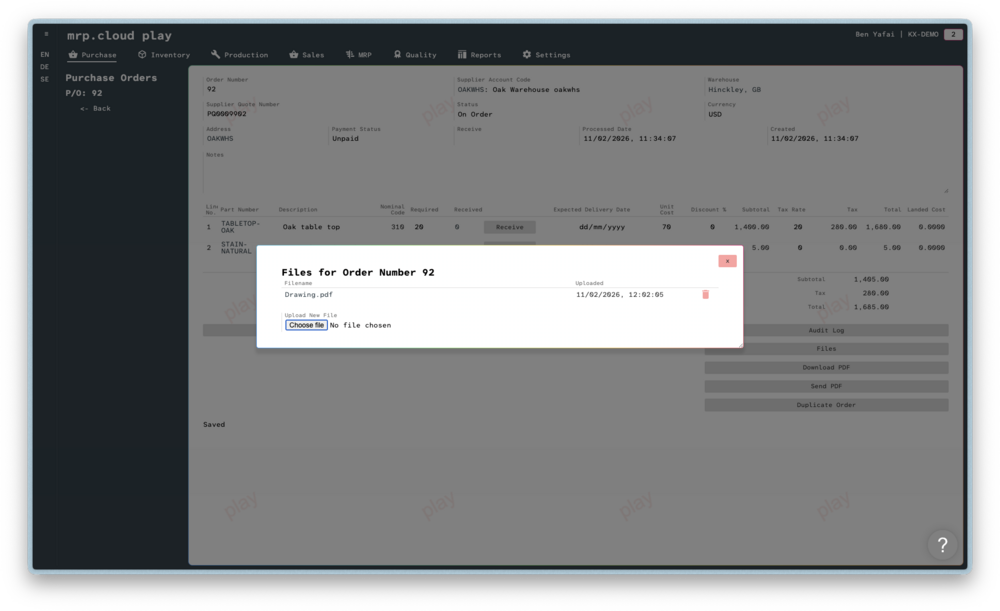
Files
Now the order is created, you can choose to upload files to the order.
This could be the Supplier's original quote, or any drawings/engineering files related to the order.
PDF
You can click Download PDF to download a copy of the purchase order for you own records, or for emailing.
Email
Alternatively, you can click Send PDF for MRP cloud to send a copy of the PDF to your supplier.
This will open an Email modal with the supplier's email address pre-filled. You can type a message to the supplier and optionally include any of the previously uploaded files.
The email will be sent from the address associated with your selected Warehouse.

You are now ready to Receive Stock