

Purchase Order - Receive Stock
- 1
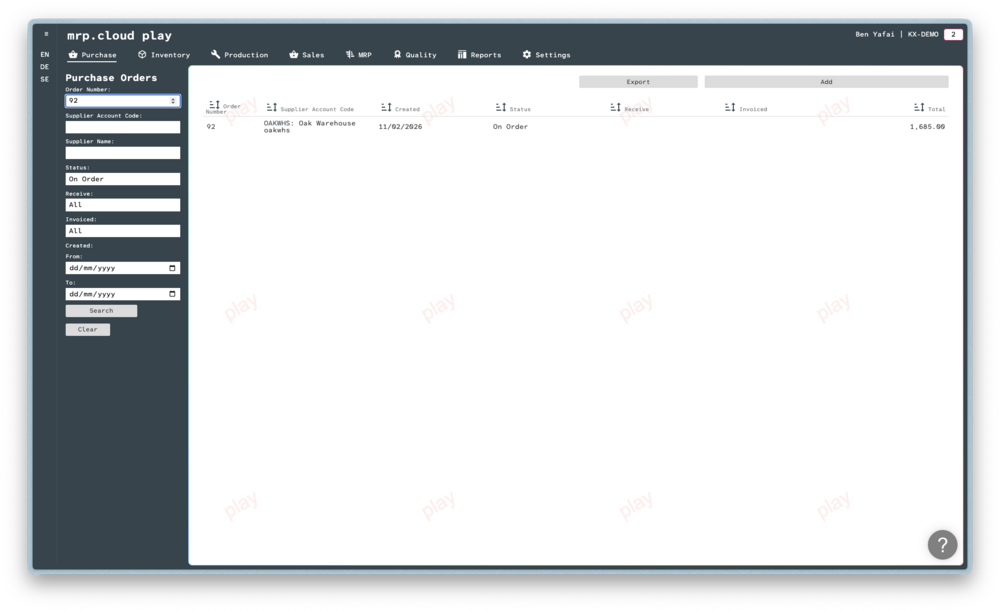
First open the Purchase Order that is related to your received order.
You can search for the order by Order Number, Supplier Account Code, or Supplier Name- 2
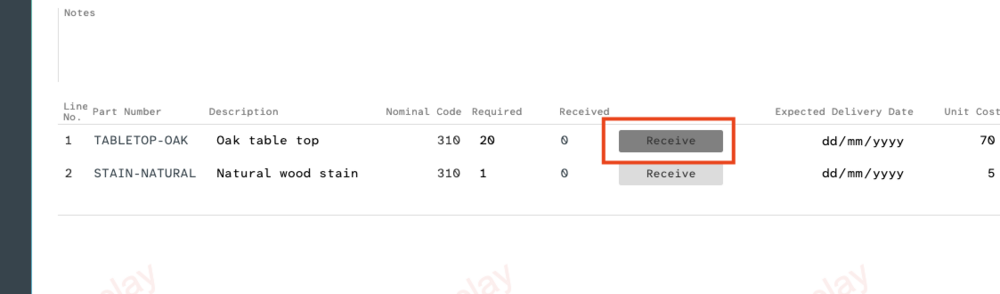
For each line item, you can click the
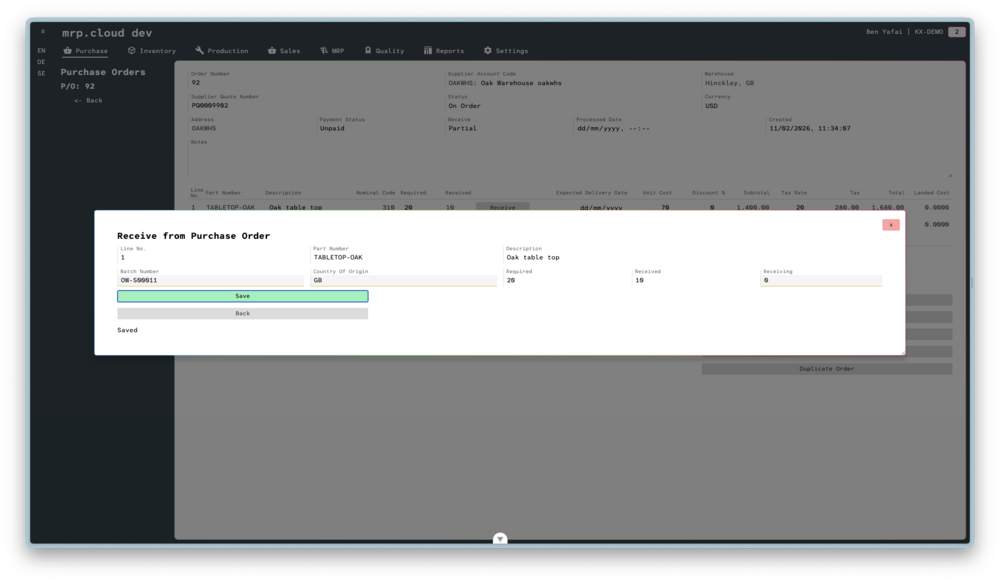
Receivebutton to open the Receive from Purchase Order screen.Here you should enter the Batch Number of the item, the Country of Origin, and the Quantity Received.
You can perform this function multiple times, useful if the items have varying Batch Number or Origins.
ClickSaveto confirm the receipt.
If you have entered all quantities, you can close the receipt screen using by clickingBack.
View Batch Receipts
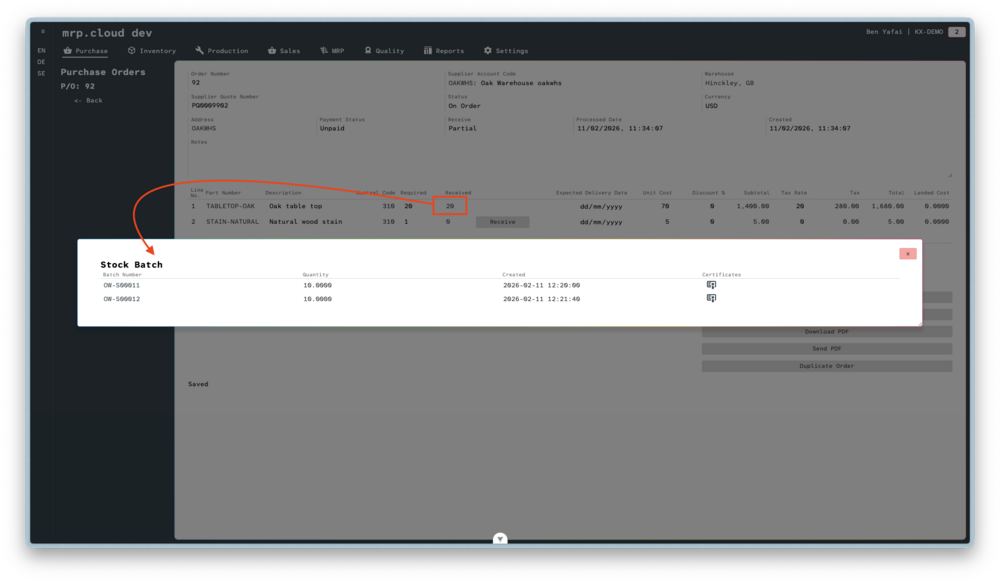
For each line item, you can click on the Quantity Received to view the batch history.
Upload Certificates
In the Batch Receipts screen, you can upload a Certificate of Conformity or other related documents for this batch by clicking the Certificate Icon.
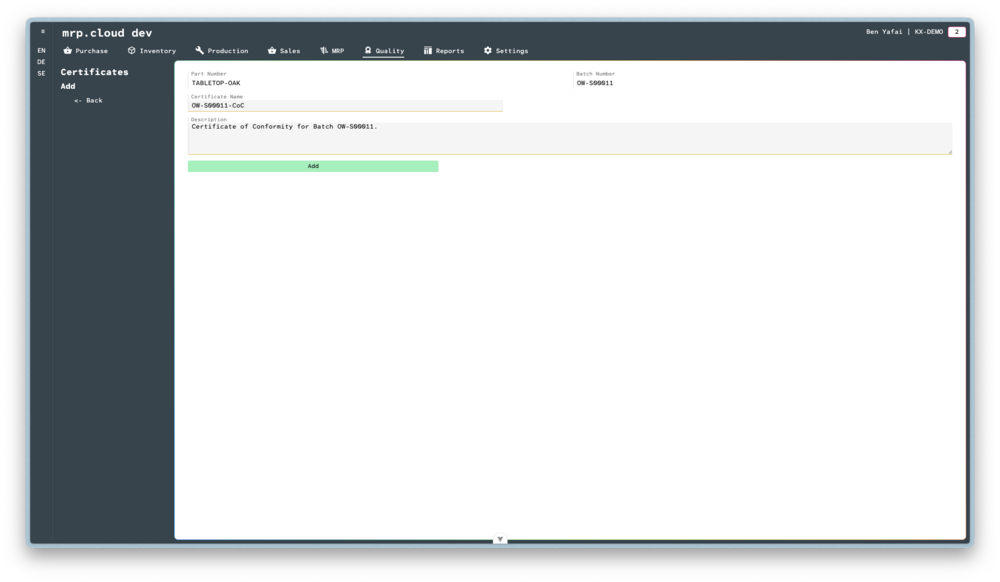
Enter the Certificate Name (typically from the actual document) and a description for internal use then click Add
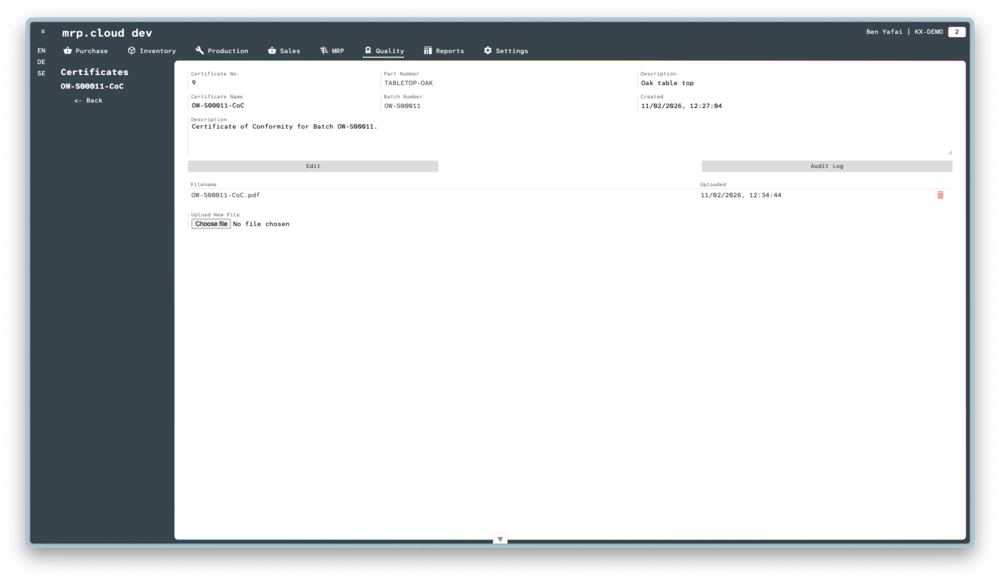
You can now upload the files to this record.
You are now ready to create a Purchase Invoice